Amazon Product Demo Video: I Got It Done in 60 Seconds with a Single Link (No More Outsourcing)
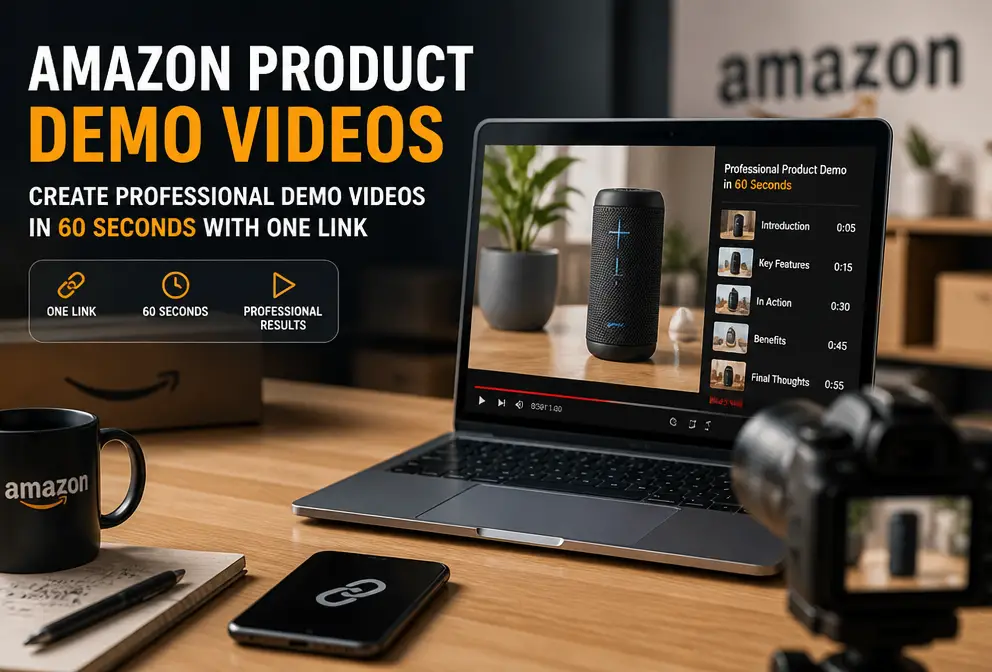
The first time I filmed a demo video for a new Amazon product, I set up the camera, adjusted three lights, swapped five background fabrics, recorded eighteen takes, and spent three and a half hours editing. After exporting and playing it back—shaky footage, noisy audio, sluggish pacing—it looked just like a company training PPT from ten years ago. A friend walked by, glanced at it, and said, “You can just paste a link and get a video—why bother with all this?” I gave him a blank stare but still opened the thing he mentioned. Three minutes later, I silently deleted the original twenty clips from my phone.
Why Amazon Product Demo Videos Are So Important (and So Hard)
Many people ignore the video slot on an Amazon product page. The main image can be flashy, and the video space stays empty. Yet industry stats are clear: listings with a video see conversion rates boost by 30%–40% on average. I only realized this after seeing the data, having previously overlooked this low‑cost, high‑return optimization.
The pitfalls of DIY videos are numerous. First, the equipment: I bought a gimbal that sat unused after two uses. Then lighting: natural light in my living room is only usable for two hours in the afternoon, resulting in either overexposed or completely dark footage. The biggest issue is time: after shooting, you have rough cuts, voice‑over, subtitles, color grading, and export—e whole pipeline takes two days. Outsourcing? Editors start at ¥300, with each round of revisions taking two to three days and extra fees for changes.
There are also format requirements. Different Amazon ad placements demand different aspect ratios: the main image video is usually 16:9, while Sponsored Brands and display ads often require 9:16. I initially filmed everything in 16:9, only to discover during upload that the cropping ruined the composition.
The most direct consequence is that users land on the product page, see no video, and leave. Amazon’s algorithm also considers dwell time, and a missing video equals a missed ranking boost.
Traditional Production vs. AI One‑Stop (I Chose the L)
The traditional workflow looks like this: shoot footage → rough cut → voice‑over → subtitles → color grading → render and export. Even if all assets are ready, the process takes at least two to three days and costs ¥200–¥500. That’s the most streamlined scenario.
In contrast, an AI workflow works like this: paste the product link → automatically generate hooks, script, storyboard → preview → export. From start to finished video, it takes 60 seconds.
The tool is VEONIB, which I stumbled upon on its Product Hunt page. It had just launched and was already getting a lot of attention, so I clicked in with a “try it for free” mindset. The first thing I did was copy the URL of my silicone spatula product and paste it into the input box. While the AI was analyzing for about ten seconds, I was skeptically chuckling, but the generated hooks blew me away—it produced five or six opening lines, one of which was “This spatula changed my morning efficiency,” far better than anything I could have thought of. And you can preview for free without paying first; the preview shows the full script, storyboard, and scene sketches. I couldn’t believe it, so I tried a T‑shirt link as well and got a 60‑second video. At that moment, my three‑and‑a‑half‑hour edit felt like a comedy sketch.
Hands‑On: From Link to Finished Video, What I Did
Here are the concrete steps. I used the silicone spatula link, copying the product URL from the Shopify backend.
Step 1: Copy the link. No technical skill required—just Ctrl + C.
Step 2: Paste it into the tool and click “Generate.” It starts analyzing the product page, which takes about ten seconds. In the background it extracts the product name, selling points, usage scenarios, color, material, etc. If you’re dealing with baby products, check out the Generate Video from Baby Product Link example—the workflow is identical, just a different category, and the results look natural.
Step 3: Browse the generated hooks. It gave me seven or eight opening copy options; I chose a relatively realistic one: “This spatula changed my morning breakfast efficiency.” Next to it is the storyboard preview interface, with a thumbnail for each shot.
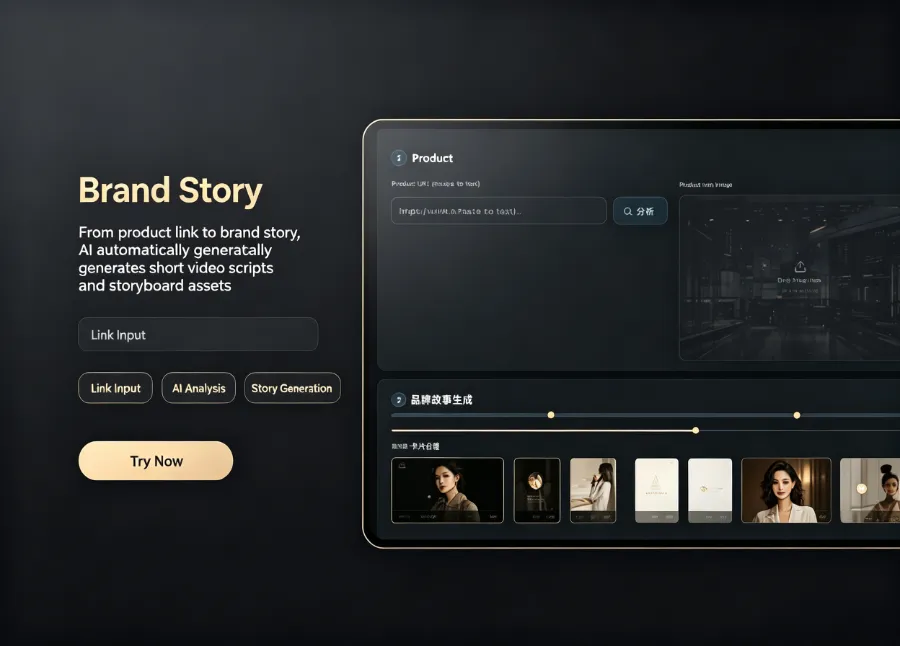
Step 4: Review the script and storyboard order, adjust the voice‑over. The default Chinese female voice is decent, but the first draft of the script sounded too salesy—“You absolutely can’t miss this kitchen gadget.” I changed it to “This thing really doesn’t stick to the pan.” VEONIB lets you edit the script line by line; after editing, click “Update,” and both the visuals and voice‑over are regenerated.
Step 5: Export. I selected a 9:16 vertical format, ready for Amazon’s video slot and TikTok Shop. From pasting the link to downloading the MP4, I timed it and it took a total of 54 seconds.
The AI‑generated script does have a drawback—it can sound like a TV shopping pitch. I manually tweaked the hook VEONIB generated to make it feel more like a genuine review. If you want a more brand‑centric demo video, see the Automatic 60‑Second Emotional Brand Story from Product guide, which emphasizes emotional storytelling and is great for brand promotion.
Pitfall‑Avoidance Guide: Three Things to Watch Out for When Using AI‑Generated Demo Videos
After a few weeks and a handful of small mishaps, I’m sharing what I learned.
1) Manually tone down the marketing language in the script. The AI is trained on high‑conversion ad data, so its openings can be extreme—either “You absolutely can’t miss this” or “99% of people don’t know.” Real product demos should feel like a friend’s recommendation. I always rewrite the first two sentences to something more modest, e.g., “After two weeks of use, here’s my honest take.”
2) Control the first three seconds yourself. Industry lore says the first three seconds determine 80% of the watch‑through rate, and it’s not an exaggeration. The AI sometimes adds a slow‑motion product placement intro. I cut the extra two seconds and jumped straight into the usage scenario, which noticeably boosted completion rates. Amazon allows up to 45 seconds for video slots, but the most effective videos are usually 15–20 seconds.
3) Check subtitles for typos. The AI occasionally misspells “non‑stick” as “non‑occupy” or drops characters. My first generated subtitles read “silicone spatula non‑occupy the pan,” while the product title said “non‑stick.” I caught it during review and fixed it manually. Once it even wrote “stainless steel” as “stainless just.” These small details matter—buyers see them on Amazon, and errors hurt trust.
FAQ
Q1: Do Amazon product demo videos have to feature a real person on camera?
Not necessarily. Pure product shots, usage tutorials, and comparison reviews can be done without a person. If you go for a UGC style, AI voice‑over plus close‑up product footage is sufficient. Real‑person appearances add trust but aren’t required.
Q2: Can I generate multiple variants of the same video for A/B testing?
Yes. The same product link can be used repeatedly to generate different hooks, scripts, and voice‑overs, producing multiple versions. I created five versions from the silicone spatula link, each testing a different opening line; the best performer showed the “egg‑fry without sticking” scenario.
Q3: Who owns the copyright of the generated video? Can I use it commercially?
The exported video belongs to you and can be used commercially—on Amazon, standalone sites, paid ads, social media, etc. The free preview drafts are typically not for commercial export; you need to export the final version.
Q4: How far does the free preview go?
The free preview shows the full list of hooks, the complete script, storyboard images, and a voice‑over sample. You cannot download a watermark‑free final video, but you can preview as many times as you like and keep tweaking until you’re satisfied before paying to export.
Q5: Can I use my product on Shopify or TikTok as well?
Yes. The tool directly parses links from Shopify, Amazon, TikTok Shop, WooCommerce, etc. You can choose the output aspect ratio at export—9:16, 1:1, 16:9—so one link can produce three sizes, saving you the hassle of re‑cropping.
Share Article