Shopify Product Image Background Removal: Make Your Products Look Good on Any Theme
The Most Overlooked Thing for Shopify Sellers
Many Shopify sellers spend a lot of time on product selection, ad spend, and conversion optimization, but they overlook a fundamental issue: whether the product images are clean.
Shopify’s ecosystem differs from Amazon’s. Amazon enforces a strict white‑background rule for the main image, while Shopify gives sellers more freedom—you can use any background, any style, any layout.
Freedom is good, but it also means: the quality of your product images depends entirely on you.
Without regulatory constraints, your product images need to achieve two things simultaneously:
- Clean subject—the product itself is clear, without cluttered background interference
- Consistent style—the whole store’s images look like the same brand, not a mishmash
To meet both points, the first step is: cleanly separate the product from its original background.
Why Do Shopify Product Images Need Transparent Backgrounds?
Shopify themes have varying background colors—some white, some beige, some dark, some gradient. If your product image has a fixed background color, switching themes can cause mismatched white edges or color blocks.
Transparent‑background PNG assets avoid this problem—they can adapt to any theme, any background color, any layout scenario.
Specifically, the uses of transparent assets in a Shopify store include:
| Use | Description |
|---|---|
| Main product image | Product centered, background follows theme color |
| Product carousel image | Multiple product images stacked on a unified background |
| Homepage banner | Product assets overlaid on marketing background |
| Discount / promotion image | Product + promotional copy + brand‑color background |
| About us page | Team / brand story illustration |
| Social media traffic image | Consistent‑style social media assets |
One background removal, reusable across the whole store. That’s the efficiency value of transparent assets.
Shopify Technical Requirements for Product Images
Although Shopify doesn’t have Amazon’s strict white‑background rule, there are some technical details to note:
Recommended Sizes
| Image type | Recommended size | Notes |
|---|---|---|
| Main product image | 2048 × 2048 px | Square, supports zoom view |
| Product carousel image | 2048 × 2048 px | Consistent with main image |
| Banner / slideshow | 1920 × 720 px | Wide, adjust per theme |
| Collection page | 1024 × 1024 px | Grid display |
| Blog illustration | 1920 × 1080 px | 16:9 ratio |
File Formats
- PNG: Use when a transparent background is needed; larger file size but lossless quality.
- JPEG: Use when transparency isn’t required; smaller file size, faster loading.
- WebP: Shopify automatically converts; balances quality and size.
File Size
Shopify limits a single image to 20 MB, but in practice it’s recommended to keep it under 500 KB. Oversized images slow page load, affecting SEO and user experience.
Tip: First generate a high‑quality transparent PNG as the source file, then export versions in different sizes and formats as needed. Keep the source file; use the exported files for publishing.
From Shooting to Publishing: Complete Workflow
Step 1: Shooting
Basic setup:
- White or light‑gray background (solid seamless paper is best)
- Two soft‑box lights illuminating from the left and right
- Tripod to steady a phone or camera
- Product centered, occupying 70‑80 % of the frame
Advanced tips:
- Leave enough edge space when shooting to facilitate later cropping and composition adjustments.
- If the product has multiple colors/styles, keep the shooting angle and lighting exactly the same.
- Photograph a set of the product’s front, side, back, and details for later carousel images.
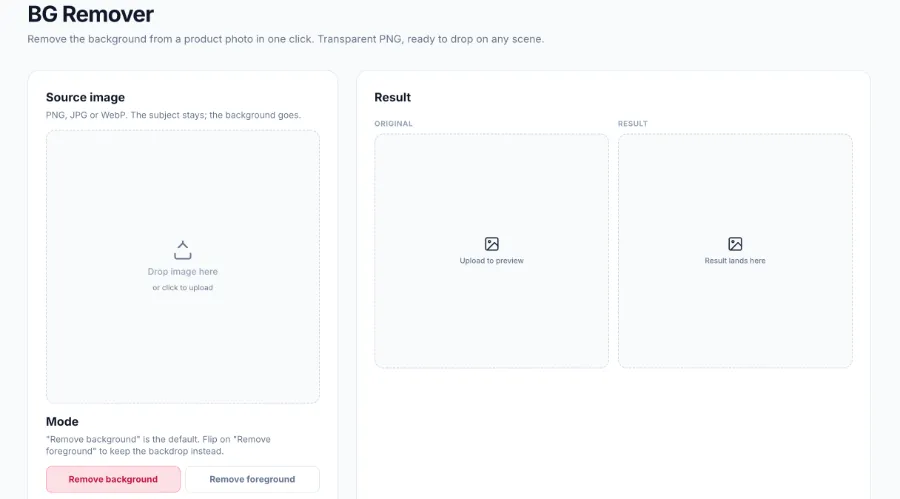
Step 2: AI Background Removal
Upload the original shots to an AI background removal tool:
- Open the tool page.
- Drag‑and‑drop the image (supports PNG, JPG, WebP).
- Wait for AI processing, usually 3‑10 seconds.
- Download the transparent‑background PNG.
Platforms such as VEONIB offer free background removal, outputting watermark‑free, full‑resolution images. Registration gives you credits; everyday use is sufficient.
Step 3: Post‑Processing
After obtaining the transparent PNG, perform further processing as needed:
- Resize: Crop to Shopify’s recommended aspect ratios.
- Add drop shadow: If the product looks too “flat,” add a subtle natural shadow.
- Unify style: Ensure all product images in the same store have consistent cropping ratios and styling.
Step 4: Upload to Shopify
Upload the images on the product edit page in Shopify’s admin. Shopify will automatically compress and convert formats, but it’s recommended to pre‑compress them to a reasonable size before uploading.
Five Shopify Product Image Styles, All Covered by Transparent Assets
Style 1: Solid Color Background
The simplest and safest. Transparent product overlaid on a solid background matching the brand color.
Suitable for almost all categories, especially stores that need a clean, professional look.
Style 2: Gradient Background
More depth than solid color. Transparent product overlaid on a gradient from light to dark.
Suitable for beauty, skincare, fashion categories.
Style 3: Scene Composition
Place the product in a virtual scene. For example, a coffee cup on a tabletop, headphones in a gym setting.
Suitable for categories that need to show usage scenarios, such as home, sports, outdoor.
Style 4: Multi‑Product Composition
Overlay multiple transparent assets on a single image to showcase a product line or outfit.
Suitable for clothing ensembles, set sales, accessory recommendations.
Style 5: Text‑Image Mix
Product assets combined with promotional copy, feature annotations, brand logo, etc.
Suitable for homepage banners, promotion pages, seasonal marketing.
Bulk Processing Solution
If your Shopify store has dozens or even hundreds of SKUs, processing each image individually is too inefficient.
Recommended bulk workflow:
- Shoot all products at the same time (same lighting conditions).
- Batch‑upload all original images to an AI background removal tool.
- Batch‑download the transparent PNGs.
- Use a bulk image‑processing tool to uniformly resize and add shadows.
- Batch‑upload to Shopify.
VEONIB supports batch background removal; with its API you can achieve semi‑automatic processing, greatly shortening the time from shooting to listing.
Shopify Image Optimization: Not Just About Looks
Image processing not only affects visual appeal but also directly impacts the store’s technical performance:
Page Load Speed
Shopify’s page speed is a factor in SEO ranking. Images are the heaviest elements on a page; optimizing their size directly improves load speed.
Recommendations:
- Keep main product images between 200 KB and 500 KB.
- Use Shopify’s built‑in image CDN and automatic compression.
- Prefer WebP format (Shopify auto‑converts).
SEO
Google Image Search is an important traffic source. High‑quality images with a clear subject are more likely to be indexed.
Recommendations:
- Use descriptive keywords in the file name (e.g.,
blue-leather-wallet-front.png).
- Fill in ALT text describing the image content.
- Use high‑resolution originals; avoid blurry or pixelated images.
Mobile Experience
Over 70 % of Shopify traffic comes from mobile. How product images display on phone screens is crucial.
Recommendations:
- Square composition (1:1) displays best on mobile.
- The product subject should be large and clear enough to be seen on small screens.
- Avoid excessive text overlay; it may be unreadable on phones.
Frequently Asked Questions (FAQ)
Do Shopify product images have to use a white background?
Not required. Shopify does not enforce a white background like Amazon does. You can use any background style. However, for professionalism and adaptability, transparent assets are the most flexible choice—they can be overlaid on any background.
Transparent PNG or White‑Background JPEG—Which to Choose?
Transparent PNG: Use when you need flexible background to different backgrounds; it’s the source file format.
White‑background JPEG: Use when you know the image will only appear on a white background; smaller file size and faster loading.
The recommendation is to first generate a transparent PNG as the source file, then export a white‑background JPEG when needed.
Can product photos taken with a phone be used?
Absolutely. Modern phone cameras are sufficient for e‑commerce. The key is good lighting, a clean background, and a reliable AI background removal tool.
How to Keep the Whole Store’s Product Image Style Consistent?
Key points:
- Use the same shooting angle and lighting for all products.
- After AI background removal, apply a uniform cropping ratio (recommended 1:1 square).
- Consistent drop‑shadow style (if used).
- Consistent background style (solid/gradient/scene).
What If the Processed Images Are Too Large?
Shopify recommends each image be under 500 KB. If the transparent PNG is too large, you can compress it with TinyPNG or Squoosh, typically reducing size by 50‑70 % with virtually no visible quality loss.
What If the Product Edge Extraction Is Poor?
Common reasons: background color too close to product, uneven lighting, complex product edges. Suggest increasing contrast between background and product during shooting, or use a more capable AI edge‑processing tool for re‑processing.
Summary
Shopify gives sellers freedom, but it also means you must control the quality of your product images yourself.
Transparent background assets are the optimal solution for Shopify product images: one background removal, adaptable to any theme, reusable across the store. Paired with AI background removal tools, the workflow from shooting to publishing can be dramatically shortened.
The quality of your product is first judged by the image buyers see. Getting the images right makes the rest of your operations meaningful.
Last updated September 2026.
Share Article