Why a Mac-Only Subtitle Tool Might Be the Most Underrated Bet for Your Video Ads Workflow
If you’re running paid acquisition on TikTok Shop, Amazon Sponsored Brands, or YouTube pre-rolls for your DTC store, you already know the math: a 15-second video with clear, styled captions can lift conversion rates by 15–30% compared to mute-unfriendly content. The problem isn’t whether to add subtitles — it’s how to do it without burning an hour per video inside bloated suites like Premiere Pro or fighting the rigid preset overlays of CapCut or Descript. Every operator I know has a graveyard of “almost perfect” subtitle edits that got abandoned because repositioning a single callout meant re-timing the whole sequence.
That’s why I paid attention when Quick Sub 2 hit Product Hunt. It’s a tiny, Mac-native tool built purely to solve one thing: giving you independent control over each subtitle’s position, rotation, and styling without the overhead of a massive video editor. On the surface it looks like a niche utility. But for cross-border sellers who crank out localized video content for multiple markets — English, German, Japanese, French — the ability to sculpt subtitles precisely could shave hours off your weekly production loop. Let me unpack why.
What Quick Sub 2 Actually Solves (That Premiere Pro and CapCut Don’t)
Every subtitle workflow I’ve tried falls into one of two camps: the “auto-transcribe and pray” approach (Descript, Rev.com) or the “manually keyframe every box” hell of traditional NLEs. Quick Sub 2 sits in a third camp — it’s a dedicated subtitle editor that assumes you already have your text ready and just want to place it exactly.
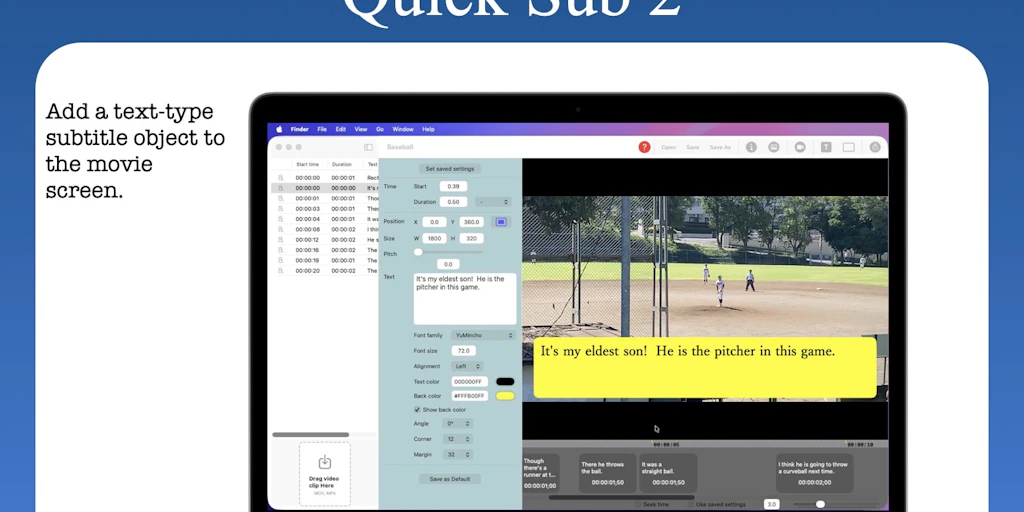
The core pitch the maker, Señor Tomato, lays out is direct canvas manipulation: drag subtitle objects over the movie screen to position them, rotate them, and adjust container geometry — all without touching a properties panel. That’s a real workflow difference. In CapCut, for example, you can drag captions, but the rotation is locked to a slider buried in a side panel. In Premiere, every subtitle is a nested graphic clip that fights your timeline unless you’ve built a custom template.
Quick Sub 2 also gives you batch styling: apply size and style parameters across multiple subtitle objects with a single menu command. That’s the feature that saves time when you’ve got 40 captions for a 2-minute product demo and you realize the font size is too small for mobile.
The dynamic timeline lets you zoom from 0.1x to 10x, and you can drag objects to change timing. No frame snapping or audio-cue snapping at this point — the maker acknowledged that’s not yet implemented, calling it “pure freehand timing.” That’s a limitation, but for most e-commerce videos you’re not doing frame-accurate lip-sync; you’re aligning captions with on-screen product shots or key benefit bullet points.
How It Differs from the Incumbents (and Where the Comparison Fails)
Let’s stack it against the tools you probably already use:
| Tool | Subtitle Approach | Best For | Quick Sub 2’s Edge |
|---|---|---|---|
| CapCut | Auto-caption + preset templates | Quick TikTok/Reels edits | No rotation lock; independent object control |
| Descript | AI transcription + text-based editing | Podcasts, long-form content | Manual precision; no auto-transcription needed |
| Premiere Pro | Full graphic + caption track | Professional multi-layer video | Lighter, single-purpose workflow |
| Pinnacle Studio | Timeline-based | Beginners | Direct canvas drag + batch styling |
Where Quick Sub 2 falls short is the lack of auto-transcription. The maker stated clearly: “Nope. I have no intention of having such a feature for the time being.” If you’re producing 30 videos a week and relying on transcription software, this tool becomes a finishing step — not a starting point. You’ll still need Whisper or Apple’s built-in captions to get text into the timeline first.
Also, because it’s Mac-only (built with SwiftUI), any Windows-using fulfillment manager or VA is locked out. That’s a dealbreaker for teams that outsource subtitle work.
Why Amazon Sellers Should Care More Than Shopify Ones
The Shopify crowd tends to use short-form video for organic social — a quick iPhone clip with Instagram’s auto-captions is often enough. But Amazon FBA brand owners face a different beast: Sponsored Brands video ads and A+ Content demo loops where every pixel matters. Amazon’s video uploader gives you exactly 15–30 seconds to convince a shopper not to scroll. A subtitle that’s slightly off-center, or rotated at the wrong angle, can make the ad look amateur — and wasted ad spend is the number one complaint I hear from sellers running self-serve video campaigns.
Moreover, Amazon requires closed captions in the source file for certain ad formats (notably Sponsored Brands video). Quick Sub 2’s export — it burns subtitles into the video, but the .qsub2 project file saves styling as reusable presets — means you can create a template for your brand font, apply it across a whole product family, and then adjust placement per aspect ratio (square, vertical, landscape). That repeatability is gold for a seller who launches 10 new ASINs a month.
One commenter, Qifeng Zheng, flagged a critical nuance: “canvas previews at display res, the burn-in composites at source res, so rotated text anti-aliases differently and slips off the placement you set by hand.” If you’re uploading 4K footage to Amazon and your preview is 1080p, the final burn-in might misalign the text. I’d advise always exporting a test clip at the same resolution as your final video before running a full batch.
Where the Math Breaks: The Real Cost of Saying “No” to Automation
Quick Sub 2 is a precision tool, but precision is expensive in time. The maker’s candid admission that development has paused for a new project — “I’ve started working on a new project” — raises a red flag for anyone planning to rely on this long-term. A one-person indie tool with no update roadmap is a risk if you need compatibility with macOS Sequoia or fix for that preview-to-export pixel drift.
Also, the fact that it doesn’t export .srt or .ass sidecar files (only burn-in) is a hard no for some workflows. If you’re uploading to YouTube or Vimeo, you want separate caption tracks for accessibility and SEO. The maker didn’t address Leopold’s question about sidecar exports — only that the project saves styling. So expect to use Quick Sub 2 as a “finishing burn-in” tool, not a caption pipeline.
Finally, the pricing isn’t disclosed on the Product Hunt page. Many Mac App Store tools in this category range from $10–$30 one-time. If it’s a subscription — especially one without a free tier — the value proposition weakens against free options like Shutter Encoder (which can burn in .srt files, albeit with zero styling control).
What I’d Watch / Test Next
If you’re a seller producing 5–20 short-form video ads per week, here’s a concrete test plan for the next 7 days:
- Download Quick Sub 2 and load a 30-second product clip. Manually type 8–10 subtitle lines (no transcription). Spend 10 minutes pushing captions around — rotate one, slant it, change the background color. See if the direct canvas manipulation actually saves you time compared to CapCut’s preset grid.
- Export at two resolutions: 1080p and 4K. Compare the subtitle placement on a 4K monitor (or zoom in). If the anti-aliasing shift flagged by Qifeng Zheng appears, you’ll know the tool is best used for social-square (1:1) formats where resolution differences are less pronounced.
- Create a reusable preset for your brand font (e.g., bold white text with 20% black background and 3px round corner). Apply it to a second video. If the “Save as Default” button works as promised, you’ve just automated 70% of the styling — that’s a genuine win.
- Run a timing check: try to align a subtitle with a product box sliding into frame around the 7-second mark. Use the 10x timeline zoom. If you find yourself wishing for frame snapping, consider pairing Quick Sub 2 with Final Cut Pro’s caption tool for timing, then exporting .srt and using Quick Sub 2 only for styling and burn-in.
The bottom line: Quick Sub 2 won’t replace your video workflow. But for the specific pain point of “I need 30 subtitles perfectly placed, rotated, and styled in a consistent brand look,” it’s worth the download. Just don’t bet your whole production pipeline on a solo developer’s side project — at least until the roadmap shows frame snapping and sidecar export.


